VMware ThinApp is a pretty powerful addition to any VDI environment.
With VMware View VDI you can cut down the maintenance costs of your desktop environment pretty drastically, and provide a more manageable solution with many benefits to your business in the long run. However, the question of application delivery itself presents a challenge that VDI itself does not really address. ThinApp fills that gap by virtualizing applications. In this post I would like to present how ThinApp works. I will also demo delivery of a single application (Adobe Reader). Stay tuned for a follow-up post tackling a more challenging situation.
ThinApp is part of the Premier edition of VMware View (along with Composer). In essence, it allows any application to be virtualized - i.e. delivered and run on any desktop (virtual or physical) without actually being installed. The process of making an application available (ThinApp'd) consists of the following:
- An administrator prepares the application package ("thinapps" the app) by performing a typical install of an app on a desktop machine (virtual or physical). In the background, while the application is being installed, the ThinApp process records any changes and additions the app setup makes to the OS.
- These changes (the recording) are then "packaged" into an executable file. That file contains all the files, settings, registry settings, etc., that the app needs to run.
- The administrator then places that package (the executable) on the network - somewhere where it can be accessed by the intended users of that application
- The end user can browse to that executable and launch it. When it is launched, the application streams to the end user's machine, starts up and behaves as if it was actually installed.
- However, the application is never installed - it runs in a "virtual bubble" - which eliminates any application conflicts and removes the effort/challenges typically associated with the addition and removal of applications (the application lifecycle). The application can run on any system for any user.
In this demo, I will thinapp Adobe Acrobat Reader 9.1.
I have two WindowsXP virtual machines in my lab. They are both "fresh" - no software has been installed on them other then what typically comes with WinXP. The first machine (Packager) will be used to prepare the thinapp application packages. The second machine will be the end-user computer that the thinapp'ed Acrobat Reader will be delivered to and launched.
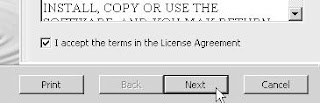
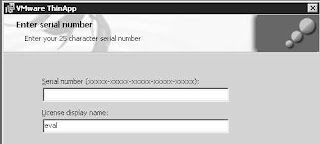
Before I can package an application, I need to install ThinApp recording engine. ThinApp itself is tiny - about 10 MB. I created a snapshot on my packager vm before I kicked off the ThinApp install. The install itself is super simple. Just kick it off and supply the license number:
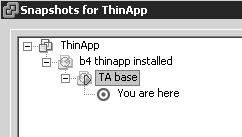
Once ThinApp is installed, I immediately create another snapshot. That new snapshot will be the "base" I will always revert to before packaging (thinapping) an app so that I always have a "clean" OS to build a package on:
I called the "base" snapshot "TA base"
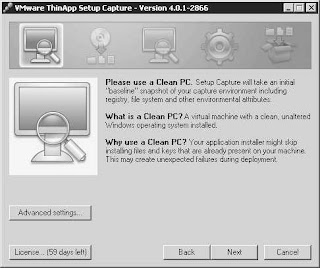
It is important to start with such "clean" image because some application setups will not install files that are already present and thus will not be captured by ThinApp recorder. Once users attempt to stream such app, it will fail because their base OS may not have these files on it.
Now I am ready to package Acrobat Reader. I start the ThinApp recorder:
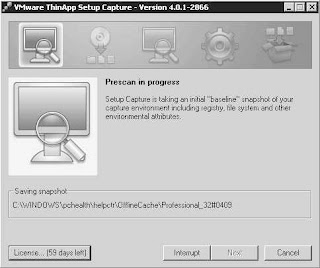
After hitting Next it scans the vm to record its state before Adobe Reader is installed:
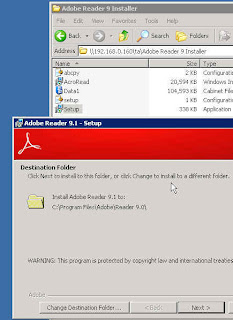
Now I am going to minimize ThinApp and install Acrobat Reader:
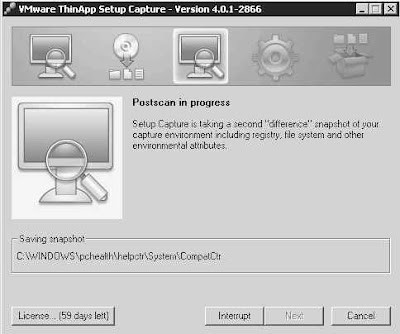
The install is now done. I can maximize the ThinApp window and click Next to have it re-scan the vm to detect and record all the changes and additions done by Acrobat setup (One other thing I did before re-scanning is I launched the Reader to accept the Adobe EULA and change Acrobat properties to Never check for Updates - so that the end users are not annoyed by any popups. The changes I made will be recorded as part of the package):
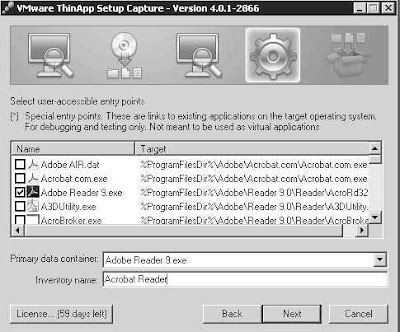
Once the Rescan is complete, I tell ThinApp what executables in the package are to be "launchable":
Now I am ready to tell ThinApp to Build the package (actually, there were three other screens with options I did not include/explain on purpose - they will be covered in another "advanced knowledge" post in the ThinApp series):
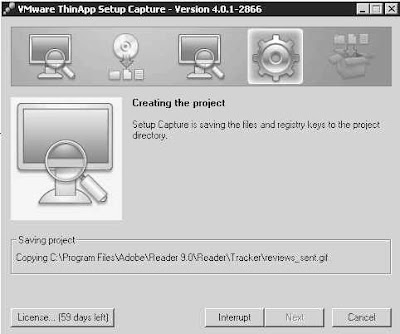
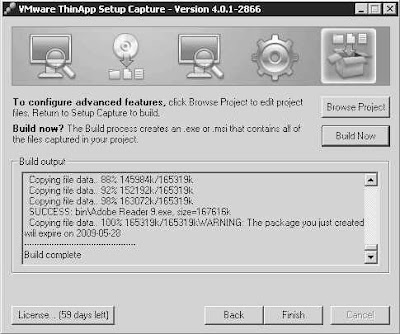
I can now launch the packaged Adobe Reader from my test workstation (on which Adobe was never installed) and experience the delivery of a ThinApp'd application. Note that I have a pdf document saved on my desktop. The document type (pdf) is not recognized by the OS and tso the icon is missing:
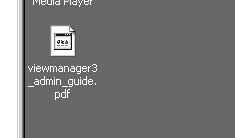
On that workstation, I am going to execute the following command:
- c:\thinreg.exe "\\192.168.0.160\ta\Adobe Reader 9.exe"
thinreg is a Command-Line utility that registers the package and any associated file associations. It gets installed with ThinApp. In a production environment, the registration using thinreg.exe would be done as part of a logon script or similar automatic mechanism.
Once I register Adobe Reader, its shortcut appears on the desktop. Also, the pdf file now has the proper icon (registration of the package was successful):
I can now double-click the pdf file (in this example, the VMware View Admin Guide), and it launches right away with Adobe Reader. Above the system tray there is a momentary pop-up informing about the Reader being launched:
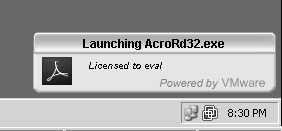
It is followed by Adobe Reader launching with the document I double-clicked on:
Now I can use this procedure to make Adobe Reader available to any of my users.
Stay tuned for ThinApp article Part II - more advanced management and applications.

 Once the disk is resized, I need to use a 3rd party utility called gparted to resize the boot partition in Windows. I downloaded gparted from http://gparted.sourceforge.net/download.php